 NoryxBot Presence
Your Discord presence on your website, live
Your status, games, Spotify music and custom status, updated in real time. Free, with no sign-up and no key: your Discord account is all you need.
Open source under the AGPL-3.0 licence: the code is public, so you can read it, check it and contribute.
NoryxBot Presence is live. The presence.noryxbot.com address has been active since
November 9, 2026: free, no sign-up, no key. Join one of the two servers and your status is available right away.
Its code is now public on GitHub.
In plain words, what is it?
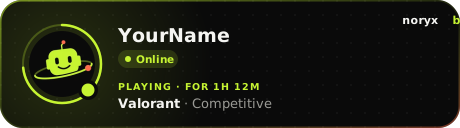
A small card to put on your website or your GitHub page. It shows live whether you’re online on Discord, what you’re playing and the music you’re listening to. Like your green dot on Discord, but visible anywhere.
No coding needed: 3 steps
- Join a server The Studio Zératik Discord server or the NoryxBot one. That’s what turns the service on for you.
- Find your Discord ID A string of numbers that stands for you. In Discord: Settings → Advanced → Developer Mode, then right-click your name → Copy User ID.
- Paste your line on your site The generator just below prepares it for you. Paste it into an “HTML” or “Embed code” block (Wix, WordPress, Carrd, Notion…) or into your GitHub README.
Create your card
Paste your numbers to see your real card and get your line.
Preview
Preview with an example: your card will show your name, your avatar and what you’re doing.
Your line to copy
Tip: if you only want the card, you’re done! The rest of the page (API, WebSocket…) is for developers who want to build their own display.
The technical words, explained simply
- Discord ID
- The unique number of your Discord account. It never changes, even if you change your name.
- HTML
- The language of web pages. The line to copy is HTML: it says “show this image”.
- README
- A project’s home page on GitHub. Many people show their card there.
- API
- An address a program asks to get data (here, your presence), instead of a page made for humans.
- JSON
- The format of the API’s answers: neatly organized text that programs can read.
- WebSocket
- A connection that stays open: the site is told the moment your status changes, without asking over and over.
- Presence API
- A service that gives your Discord status to other websites. There are a few of them; NoryxBot Presence speaks the same language, so switching is easy.
- Request, limit
- Each time a site asks for your presence, that’s a request. The limit stops one site from overloading the service.
Why NoryxBot Presence
Your Discord status on your site, live, in one line. Already using another presence API? Change one address: everything keeps working, with more on top.
| Usual presence APIs | NoryxBot Presence | |
|---|---|---|
| Switching | — | ✓ Same format and same live socket: one address to change |
| Ready-to-embed card | Needs a separate tool | ✓ Built in: themes, accent colour, compact size, Spotify card, SVG or PNG, English or French |
| Streaming | — | ✓ A live overlay for OBS and an animated social banner, free |
| Images | You build the addresses yourself | ✓ Ready-to-use avatar, game and album art addresses, plus display name and custom status |
| Hosting | Mostly the United States | ✓ Québec, Canada (Law 25) |
| Privacy | Varies | ✓ Memory only: nothing written to disk, no logs of who you are |
| Reliability | Rarely public | ✓ Checked every minute on a public status page |
| Support | English | ✓ English and French, by a real studio |
| Source code | Often closed | ✓ Public on GitHub, AGPL-3.0 licence |
| Price | Free | ✓ Free, no sign-up or key: your Discord account is enough |
1. Turn it on
There’s nothing to install:
- Join the NoryxBot Discord server or the Studio Zératik one.
- Copy your Discord ID: in Discord, turn on Settings → Advanced → Developer Mode, then right-click your name and choose Copy User ID.
- Use that ID with the card, the API or the real-time updates below.
As long as you’re a member of at least one of these two servers, your presence is available. Leave both and everything stops: your data is erased right away.
2. The card, in one line
The simplest way: an image that updates by itself. It works on a website, in a GitHub README or anywhere an image shows up.
<img src="https://presence.noryxbot.com/v1/users/YOUR_ID/card.svg?lang=en"
     alt="My Discord presence" width="460" height="128">
The easiest way is the generator above. Options can also be added by hand, at the end of the address:
lang=enorfr: the card’s language.theme=darkorlight: dark or light background.accent=lime,coral,blue,violet,pinkorcyan: the colour of the details.size=card,compactorspotify: the full card (460 × 128), a small badge (340 × 64), or only your music (460 × 112).hide=followed byactivity,spotify,elapsed,artorcustom, separated by commas: what you don’t want to show.
Example: card.svg?lang=en&theme=light&accent=violet&hide=spotify
A PNG image instead
Some places refuse SVG images: forums, some site builders and chat apps. Replace card.svg with card.png, with the same options: it’s the same card, drawn at twice its size so it stays sharp.
<img src="https://presence.noryxbot.com/v1/users/YOUR_ID/card.png?size=spotify"
     alt="What I'm listening to" width="460" height="112">
Overlay for OBS
For your streams: a page with a transparent background that shows your card and refreshes it every 5 seconds, without flickering. Perfect for showing the music you’re playing.
- In OBS (or Streamlabs), add a source: + → Browser.
- Paste this address, with your ID:
https://presence.noryxbot.com/v1/users/YOUR_ID/overlay?size=spotify - Set the width to 460 (340 for the compact badge) and the height to 112 (128 for the card, 64 for the badge).
It takes the same options as the card. The generator above prepares the address for you (“OBS overlay” tab).
🎧 For your music to show
- Link Spotify to Discord: Settings → Connections → Spotify, with “Display Spotify as your status” on.
- Keep your activity visible: Settings → Activity Privacy → Share your activity.
- Keep Discord open while you stream, on your computer or your phone: it’s what passes your music along.
That’s it: no app to create and no key. Your card follows your music within a few seconds. In invisible mode, your music stays private and the card simply shows “Not listening to anything”. It shows Spotify music, and only what Discord already shows your friends.
The next sections are for building your own display with code. For the ready-made card, everything is above.
3. The API
GET https://presence.noryxbot.com/v1/users/YOUR_IDResponse (shortened):
{
  "success": true,
  "data": {
    "discord_user": {
      "id": "123456789012345678",
      "username": "example",
      "display_name": "Example",
      "avatar_url": "https://cdn.discordapp.com/avatars/…"
    },
    "discord_status": "online",
    "active_on_discord_desktop": true,
    "active_on_discord_mobile": false,
    "active_on_discord_web": false,
    "listening_to_spotify": true,
    "spotify": { "song": "…", "artist": "…", "album_art_url": "…" },
    "custom_status": { "text": "Streaming tonight", "emoji": null },
    "activities": [ … ],
    "updated_at": 1794000000000
  }
}discord_status:online,idle,dndoroffline.activities: your games, streams and other activities, with their image addresses (large_image_url,small_image_url).- Errors:
404 user_not_monitoredif the person is on neither server,400 invalid_idif the ID isn’t valid,429 rate_limitedif the limit is exceeded.
4. Real time (WebSocket)
For instant updates, without polling the API:
const ws = new WebSocket('wss://presence.noryxbot.com/socket');
let beat;

ws.onmessage = ({ data }) => {
  const msg = JSON.parse(data);
  if (msg.op === 1) {
    // Hello: subscribe, then send a regular heartbeat
    ws.send(JSON.stringify({ op: 2, d: { subscribe_to_id: 'YOUR_ID' } }));
    beat = setInterval(() => ws.send(JSON.stringify({ op: 3 })), msg.d.heartbeat_interval);
  }
  if (msg.t === 'INIT_STATE' || msg.t === 'PRESENCE_UPDATE') {
    console.log(msg.d); // your presence
  }
};
ws.onclose = () => clearInterval(beat);
op 2withsubscribe_to_ids: ["ID", …]to follow several people (50 at most per connection).op 4withunsubscribe_from_idto stop following someone.PRESENCE_REMOVEarrives when a person is no longer tracked.
5. Already using another presence API?
NoryxBot Presence answers in the most common format of Discord presence APIs. Just replace your old API’s address with
presence.noryxbot.com: your site keeps working, with avatar_url, display_name,
custom_status, image addresses and updated_at on top.
6. Limits
- 180 requests per minute per IP address.
- 20 WebSocket connections per IP address, 50 people followed per connection.
- Open to every website (CORS), no cookies.
7. Your privacy
Your presence becomes public through the service: anyone who knows your Discord ID can see it. Nothing is written to disk, everything stays in memory and is erased as soon as you leave both servers. The details are in the bot privacy policy, and use is covered by its terms.
8. A question?
NoryxBot Presence is created and run by Studio Zératik. Write to contact@noryxbot.com, or go to the Support page.
🎬 Social banner for your stream New
An animated banner for OBS that shows your networks one after the other, on a transparent background. Free and with no account: everything is in the address. Keep only what you want: a single network, or even just your Spotify music.
Preview
Your address for OBS
In OBS: + → Browser, paste the address, then width 500 and height 130. The background is transparent.